Skip to Content
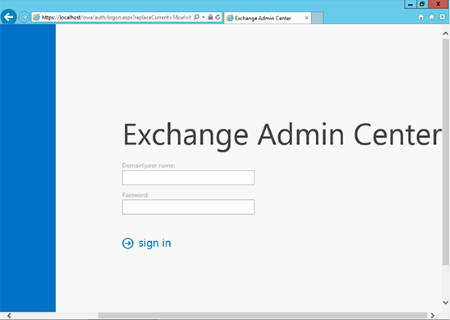
- Access the Exchange Admin Center by opening a browser and browsing to https://localhost/ecp
- Log in using Domain\user name as the format for the user name and enter your password.
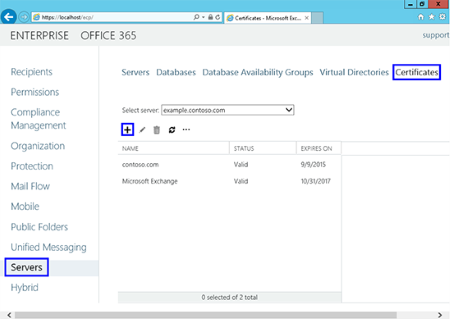
- Click the link to Servers in the left column, then Certificates at the top right, then the + symbol.
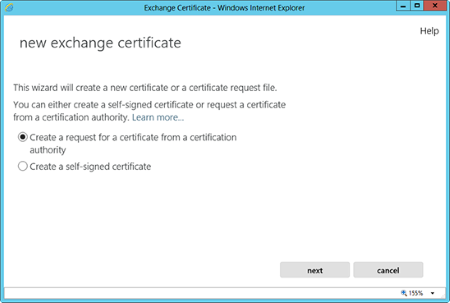
- The "new exchange certificate" wizard will appear in a pop-up window
- Choose "Create a request for a certificate from a certification authority."
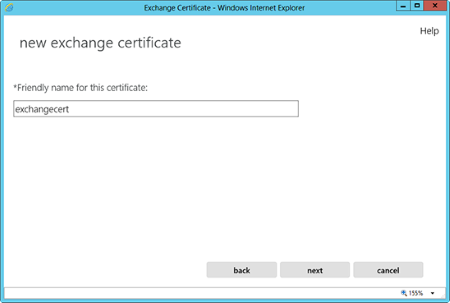
- In the friendly name field, enter a name by which you will remember this certificate in the future.
- This name is not an integral part of your certificate request.
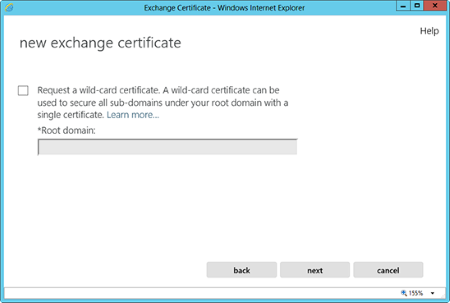
- You can check the box and enter the root domain name if you will be generating the CSR for a wildcard. Otherwise, just go to the next screen.
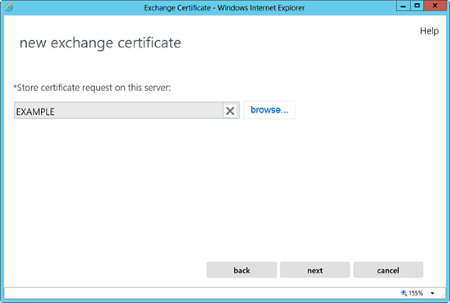
- Hit Browse to choose which server you want to store the certificate request on.
- If you are doing a wildcard cert, you will skip this step. From the list, select the services that you plan on running securely by using Ctrl+Click to highlight the services.
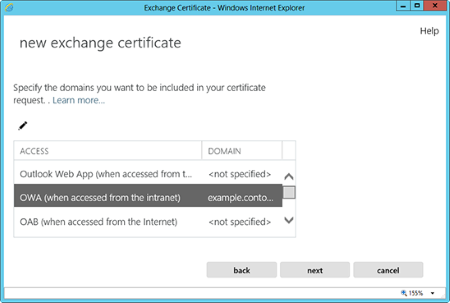
At the next screen, you will be able to review a list of the names that Exchange 2013 suggests you include in your certificate request.
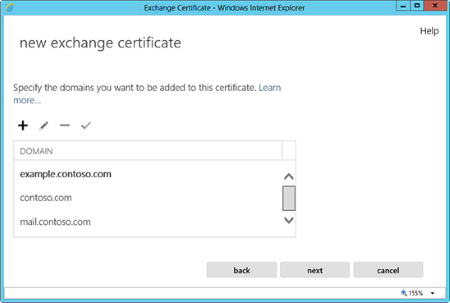
- Review those names and add any extra names by using the + button.
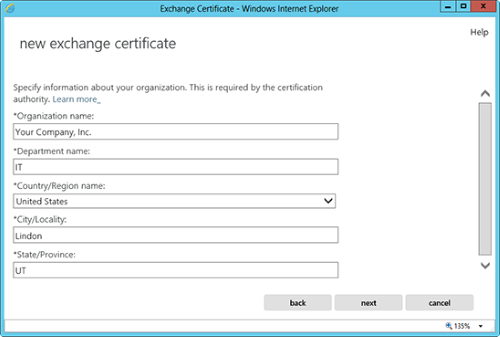
- Your organization's name should be the full legal name of your company.
- Your Department name is your department within the organization.
- If you do not have a state/province, enter the city information again.
- Enter a network share path to save the CSR to your computer as a .req file, then finish.
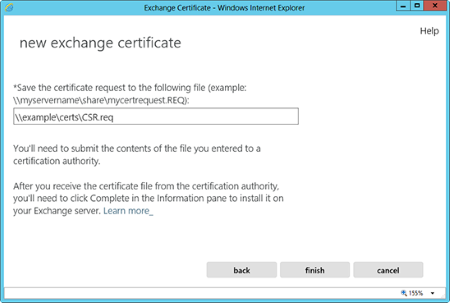
- You should now be able to open the CSR with Notepad or WordPad, and you will want to copy the entire body of that file into the online order process.